
The enhanced upload form included in Document Library Pro Power Pack allows anonymous users to upload documents to your library. To correctly (and safely) do this please follow the steps below:
When an anonymous visitor uploads a document we would like it to be associated to a user who would not normally upload documents, as this allows them to be easily filtered on the All Document screen.
Lets start by creating a user who will be the default “author” of anonymous uploads. Go to Users > All Users and create a new user called “Anon Uploads” who has the role subscriber. The name can be anything you like.
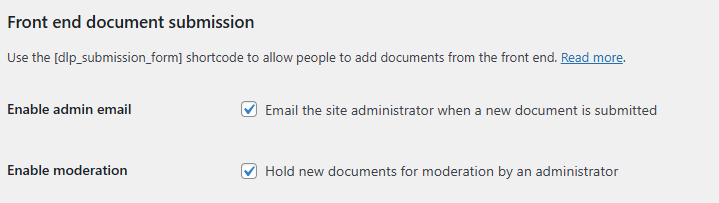
Next we will enable two settings in the main Document Library Pro > Settings screen. In the “Front end document submission” section enable both options.
With the user created, and Document Library Pro settings enabled, go to DLP Power Pack > Power Pack Settings. Scroll down to the “Frontend Settings” section and tick “Enable Frontend Uploading”.

Optionally, you may wish to send an automated email to the uploading author. This can be done by ticking “Email Uploading Author” setting.

With frontend uploading enabled we can now scroll down the settings page to the “Anonymous Submissions” section.
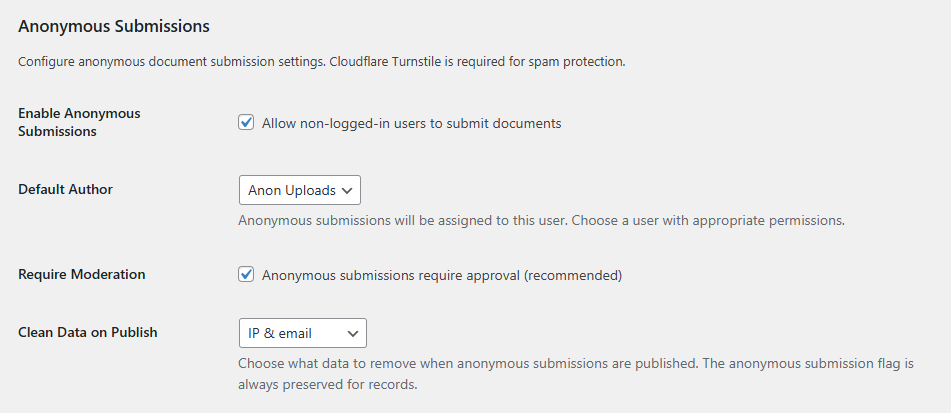
Tick “Enable Anonymous Submissions” and select our new “Anon” user. It is highly recommended to hold documents for moderation, so we will tick “Require Moderation”.
For monitoring purposes the IP address and email are stored for all anonymous uploads. After a document status has been set as “Published” these may no longer required so we will leave “Clean Data on Publish” set as “IP & email”. To keep their email address in case of contacting them at a later date you can change it to “IP address only”.
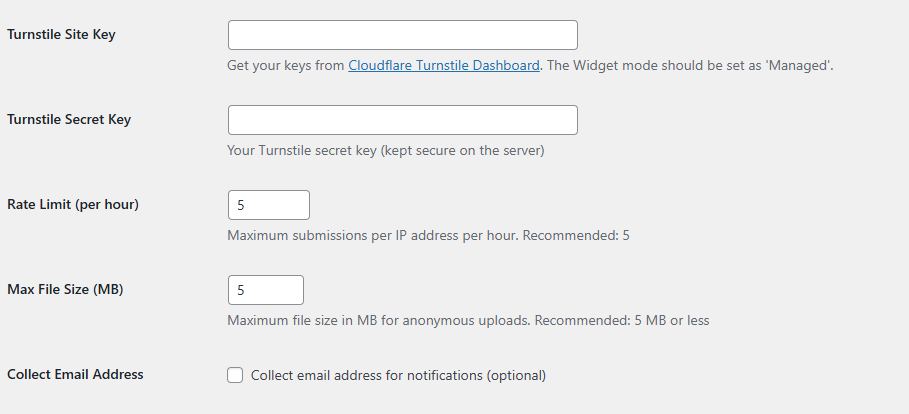
To ensure your upload form stays secure, Power Pack includes support for Cloudflare Turnstile. See enable Cloudflare turnstile bot protection for more details.
By default only 5 documents an hour can be uploaded by one IP address. This can be adjusted to suit your sites needs. There is also a 5MB file size limit set. This can be increased, however please note your WordPress hosting would also need to also allow larger files to be uploaded (covering that is outside the scope of this document).
Lastly you may wish to “Collect Email Address” for anonymous uploads. Tick this to include an email field on the enhanced upload form. At time of writing (v1.7.2) this field is currently optional.
With the settings in place, scroll to the bottom of the page and click “Save Changes”.
The next step is to create a new page to contain your new Power Pack upload form using the dlp_frontend_create shortcode. This shortcode allows optional settings for a redirect after a successful submission and the ability to include custom fields.
[dlp_frontend_create redirect="/thank-you/" include_custom_fields="true"]Adding a shortcode to your page varies by WordPress theme. Add a “shortcode” block / module to your page, add the following and save your changes:
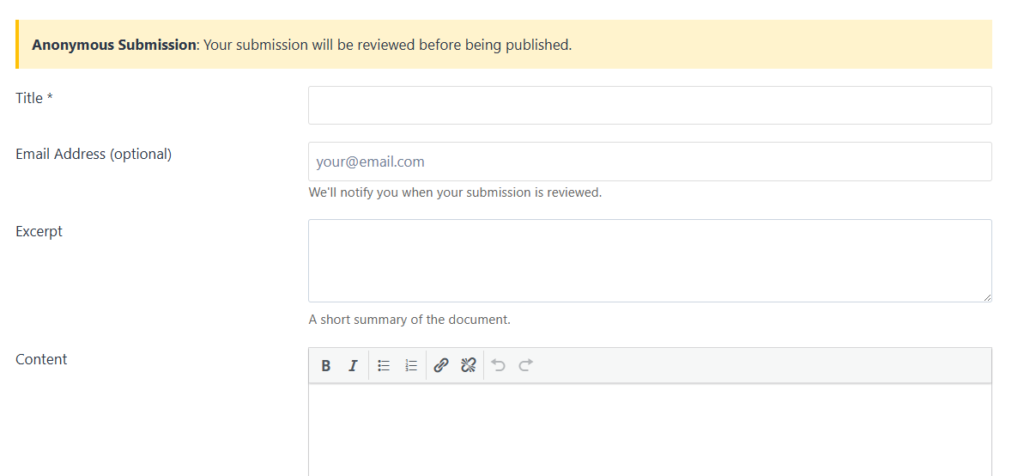
[dlp_frontend_create]Depending on your theme and styles the form should look similar to the example below:
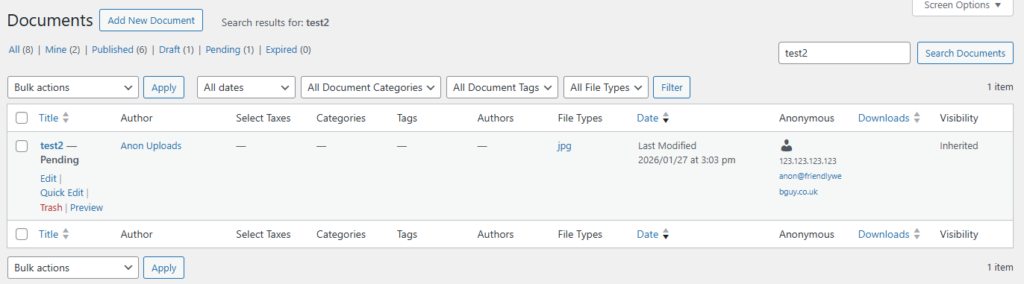
After a document has been uploaded it will show up as Pending for our Anon Uploads user. In the “Anonymous” column you can see the email address provided and their IP address.
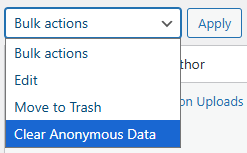
At any point you can select 1+ documents and use the “Clear Anonymous Data” bulk action.
Your new frontend form is now ready for use.