
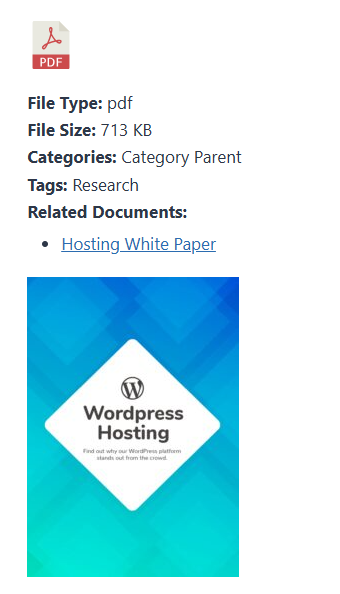
It is now possible to show related download links on the single document page. A “Related Downloads” heading and list will be included in the file information panel.
To enable related documents, go to DLP Power Pack > Power Pack Settings and scroll to the bottom of the “Frontend Settings” section. From here the related documents mode, number of related documents and bidirectional relationships can be managed.
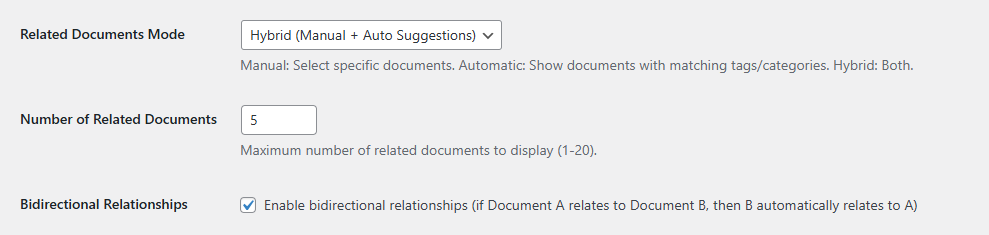
Available related document modes include:
- Manual Only
- Hybrid (Manual + Auto Suggestions)
- Automatic (by Tags)
- Automatic (by Categories)
Manual Mode: When using “Manual Only” mode you can manage relationships via the new Related Documents panel, included in the dashboard Create / Edit document screen.
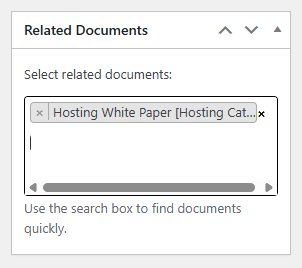
Click inside the text area and start typing a documents name to filter the selection list, then click to add your document. The document name will be shown, followed by its category in square brackets. Multiple documents can be added this way.
To remove a document click its X. Remember to save any changes by clicking the button at the top (in the publish panel).
Hybrid Mode: Add any manual suggestions (see above). If you have added Tags or Categories to your documents any remaining positions (it defaults to 5) will be automatically added to fill the remaining positions.
Automatic: It will look at either matching Tags, or Categories to make suggestions.
Bidirectional Relationships
When using the manual mode you could also enable bidirectional relationships (if Document A relates to Document B, then B automatically relates to A). This will simplify the process of setting related documents when not using categories or tags.