
DLP Power Pack Release Notes V1.6
Release notes for V1.6 – 3rd Nov 2025
- Related Documents: Single document view can now show manual or auto suggestions.
- Alternative Uploads Directory: Added setting to change the Document Library upload folder (new documents only).
- Limited User Uploads setting: Allow logged-in users to upload documents even without “publish_posts” capability.
- Frontend forms: Added settings to allow custom tag and category on create / edit forms.
- Role based document categories: Document categories now have role based permissions for viewing library / editing + uploading via enhanced frontend form.
- Bug Fix: Custom taxonomies were not being processed and saved when using the enhanced upload form.
- Document Library Pro: Updated to support Document Library Pro – Advanced V3.0
Related Documents
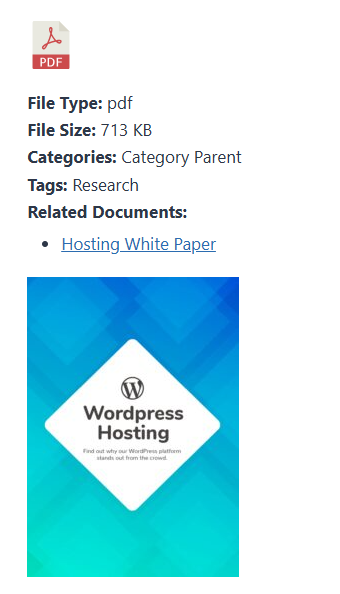
It is now possible to show related download links on the single document page. A “Related Downloads” heading and list will be included in the file information panel.
From the Power Pack settings screen the mode, number of related documents and bidirectional relationships can be managed.
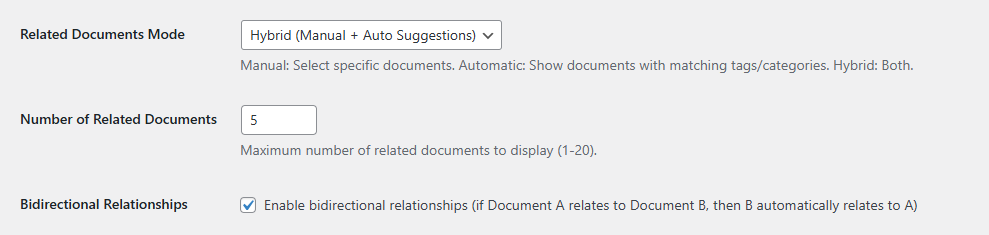
Available related document modes include:
- Manual Only
- Hybrid (Manual + Auto Suggestions)
- Automatic (by Tags)
- Automatic (by Categories)
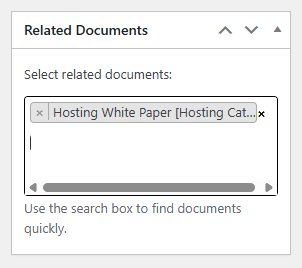
Manual Mode: When using “Manual Only” mode you can manage relationships via the new Related Documents panel, included in the dashboard Create / Edit document screen.
Click inside the text area and start typing a documents name to filter the selection list, then click to add your document. The document name will be shown, followed by its category in square brackets. Multiple documents can be added this way.
To remove a document click its X. Remember to save any changes by clicking the button at the top (in the publish panel).
Hybrid Mode: Add any manual suggestions (see above). If you have added Tags or Categories to your documents any remaining positions (it defaults to 5) will be automatically added to fill the remaining positions.
Automatic: It will look at either matching Tags, or Categories to make suggestions.
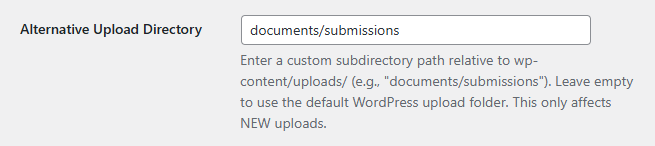
Alternative Uploads Directory (via frontend form submissions)
It is now possible for new document uploads to be saved to an alternative location (still within /wp-content/uploads) while using the enhanced frontend upload form. This is useful for site owners when documents shouldn’t be delivered by a CDN, so they are always fresh content, or simply for cleaner organisation of documents on the disk.
Enter a new directory structure, and the first new document uploaded via the enhanced frontend form will create the folders on the server and save the document.
Important: This does not change the location of documents upload via the dashboard or Document Library Pros bulk upload functionality.
Limited User Uploads setting
The new “Limited User Upload” setting allows users with a limited role like Subscriber to upload documents to your library via the enhanced frontend form.
This is useful as the user is logged and could edit their own documents, while having restricted access to the WordPress dashboard.

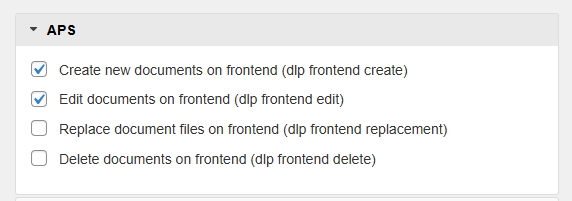
Important: When “Limited User Uploads” is enabled the existing DLP Power Pack > User Capabilities settings for “Create” and “Edit” are not used.
For a document to be replaced the existing “Document Replacement” setting will need to be enabled, and that user’s role will need the “Replace documents” capability (dlp_frontend_replacement) enabled.
Frontend forms – Custom tag / category
Previously custom Authors could be entered via the enhanced frontend upload form. This has now been extended to include Tags and Categories.
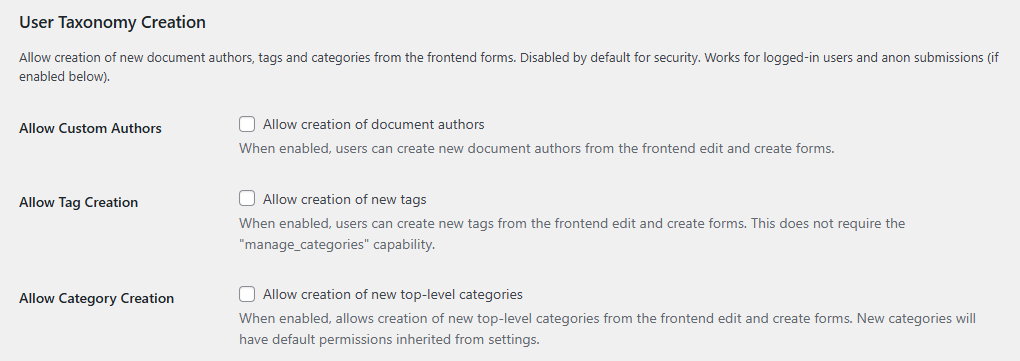
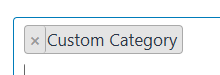
With “Allow Tag Creation” / “Allow Category Creation” enabled, the selection field will allow a typed entry to be added.
To indicate it is a new category the “Add new category:” wording is shown.

Pressing enter will add that value, which will be saved when the document has been successfully uploaded.
Important: Only new top level categories can be created. An administrator would need to update it parent via the dashboard if necessary. New categories will inherit the Power Pack’s default category permissions (see below).
Role based document categories
Note: This feature was developed prior to the release of Document Library Pro – Advanced V3.x which included functionality from Password Protected Categories plus a range of other extras. When not using the DLP Power Pack’s enhanced upload / edit form you should use the “Visibility” settings provided by Document Library Pro.
Each Document Category (Documents > Category from the main menu) now includes a Power Pack based Document Permissions section. From here you can set different permissions for viewing, editing or uploading (via the enhanced frontend form).
Available options depend on the type of permission:
- Inherit from parent (or use default)
- Everyone (Public)
- Logged-in Users Only
- Specific Roles
- Nobody
Default permissions are:
- View = Public
- Edit = None
- Upload = None.
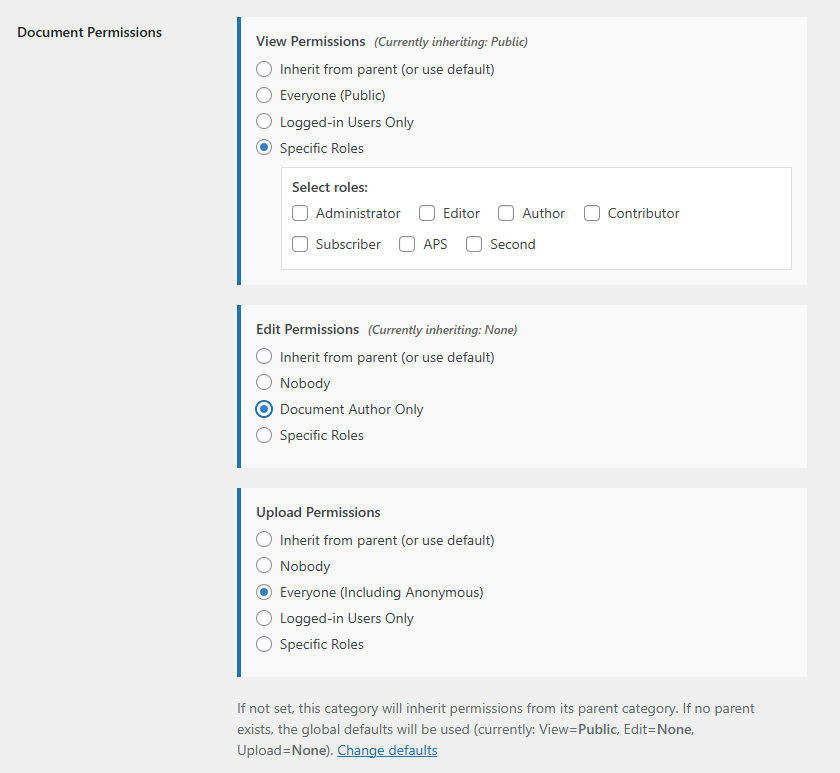
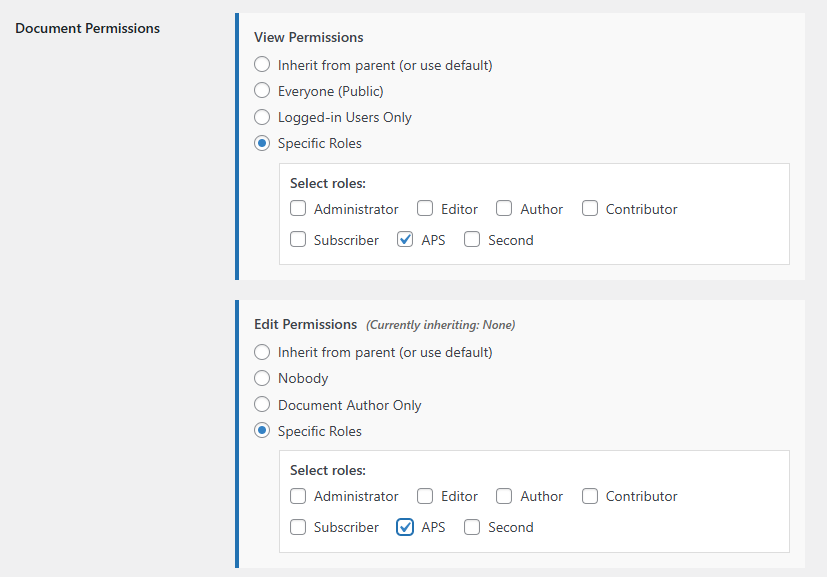
To restrict the viewing of a document category to users in the “APS” role, go to Documents > Categories, edit the relevant category, then select View Permissions: Specific Roles. Check “APS”. Save your changes as normal at the bottom of the screen.
Depending on how your document library is managed, when setting View to a specific role you may wish to set the Edit and Upload permissions to match for a consistent frontend based experience.
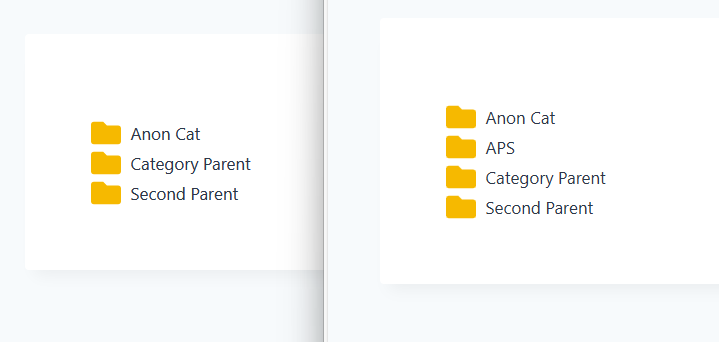
The left list shows an anonymous / logged out user. The right list shows a logged in user with the “APS” role.
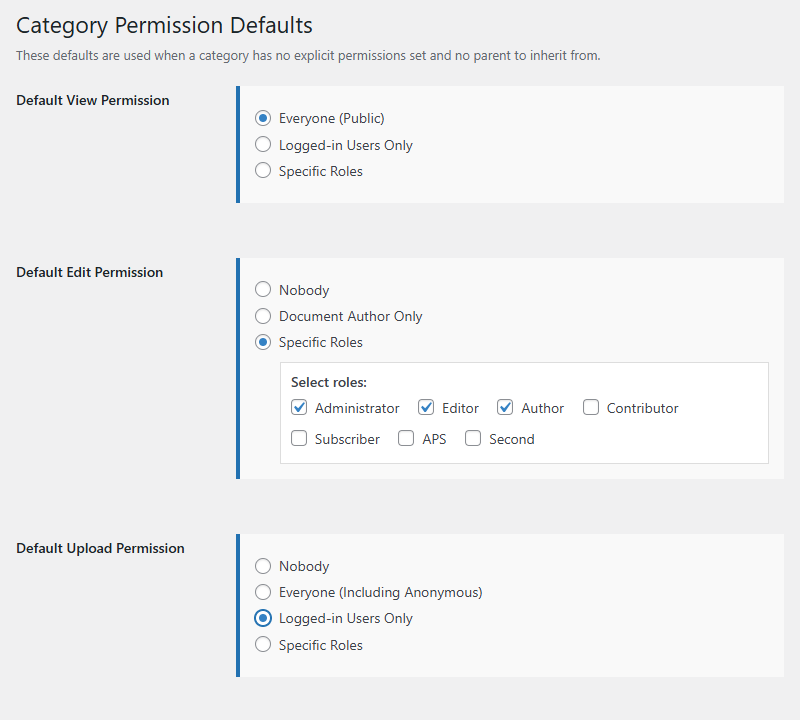
The global defaults can be adjusted from the “DLP Power Pack > Category Permission Defaults” screen.
In the example below, everyone can view document categories, while the Administrator / Editor / Author roles (not to be mistaken with Document Author) can edit or upload.
Individual child document categories can also have their permissions changed. Here the Parent Category A > Child Category A2 has been set to Administrator only.
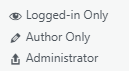
In the permissions column (on the right) you can see the upload icon and “Administrator”.
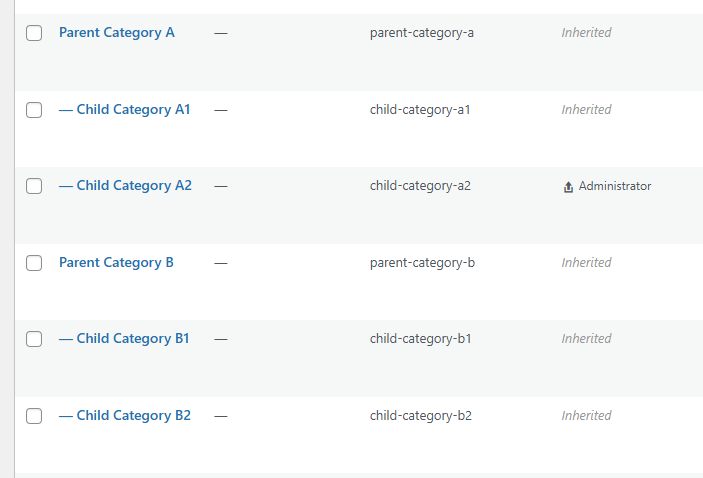
When other non-default permissions have been set you will see an eye icon for viewing, a pencil for edit, and an upload arrow for uploading. This helps see at a glance which permissions are in place.
Please note that Document Library Pro Power Pack doesn’t include the ability to create and manage user roles. “User Role Editor” from the plugin repo is one popular option to do this.