
DLP Power Pack Release Notes V1.7.x
Release notes for 1.7.3 – 13th Feb 2026
- Bug fix: Custom fields not showing up on Settings screen
- Bug fix: Adjusted [next_document] shortcode to check for both “published” and “future” statuses
Release notes for V1.7.1 – 23rd Jan 2026
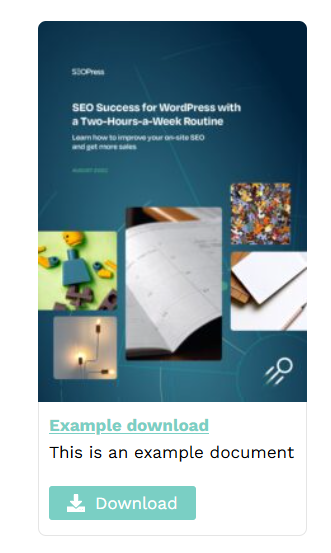
- New Shortcode: Added [next_document] shortcode to display the next upcoming document (published today or scheduled for the future) in a grid layout.
- Bug fixes: The “Download Selected Documents” downloads buttons were not working correctly with folders enabled.
- Bug fixes: Reset filter X was incorrectly being added to the page count drop down.
New Shortcode: [next_document]
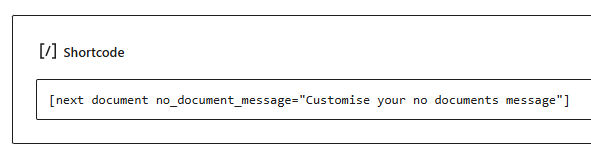
The new [next_document] shortcode was added to allow sites with date specific scheduled documents to highlight them in the grid layout style separately from their main document library. The display of the grid is controlled by Document Library Pro.
Why might this be useful?
- Meeting agendas – Display the agenda for the next scheduled meeting
- Newsletter sections – Show the next upcoming newsletter on your homepage
- Report releases – Highlight when your next quarterly report will be available
- Event documents – Show documents for upcoming events
- Membership content – Preview what’s coming next for your members
You could manually include the relevant document on the home page, but will you remember to swap it out afterwards?
This shortcode lets you focus on managing your document library and saves you time by automatically swapping to the next relevant document by displaying a single document that was either published today, or the next scheduled document.
The default shortcode can also be customised with a no document message, category or tag:
Custom empty message:
[next_document no_document_message=”Check back soon for our next release!”]
Filter by category:
[next_document category=”newsletters”]
Filter by category and tag:
[next_document category=”newsletters”]
Release notes for V1.7 – 12th Jan 2026
- Grid view: You can now enable masonry mode for your images when using grid view.
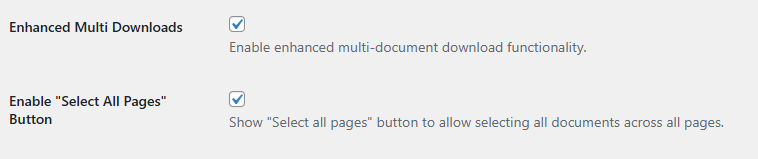
- Bulk Downloads: Added setting to enable “Select all pages” mode. The original setting is now single page only.
- Bulk Downloads: Added support for folders. Download button will appear once a folder has been expanded.
Grid View: Masonry mode for images
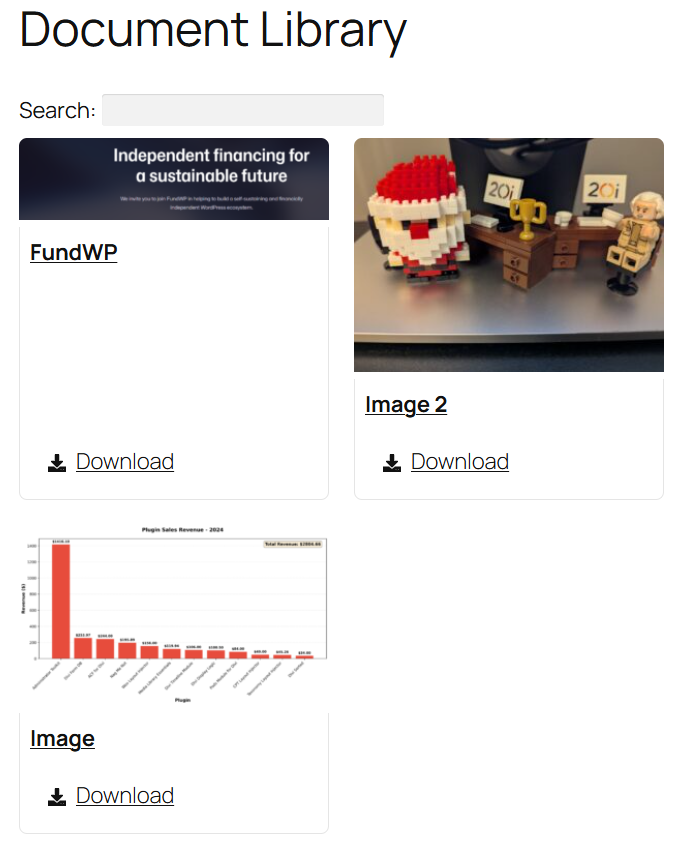
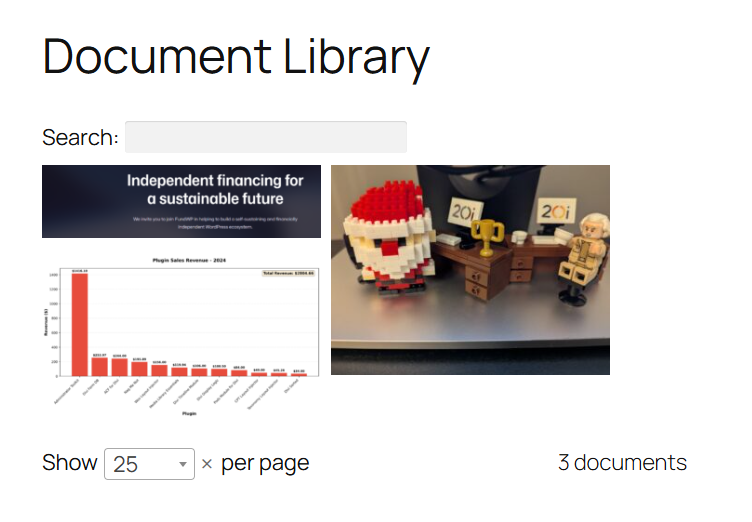
Grid view can be used to showcase your images, but until now it hasn’t been visually appealing. With Power Pack’s new “Display as Masonry Grid” setting you can show your images in the brick style layout (without the additional card information). Clicking an image will open it in a full screen lightbox.
Before:
After:
Bulk Downloads: Select all pages
Originally “Enhanced Multi Downloads” showed the “Select all pages” button. However for library’s with a very large number of images this might not be ideal. From V1.6.6 only the current page will be enabled. To allow it for all pages there is the second setting to make this a clear decision for your site.
Bulk Downloads: Folders support
Previously bulk downloading of images only worked for normal table mode and not folders. With V1.6.6 you can now see the bulk downloads checkbox / select button in folder view, along with the downloaded selected files button outside of the table container.