
ToggleWP – AI Modules sneak peek
Before reading about ToggleWP’s new AI modules please read this post to learn why these new modules exist, and how it can help your WordPress web design / WordPress hosting business: Stop giving your clients generic AI slop – Give them branded AI that actually sounds like them
TLDR: ToggleWP’s AI modules are a bring your own key offering. ToggleWP provides the infrastructure and you add your value added services on top without any API key markup.
Introducing the AI Hub
New to V0.3, the AI Hub and AI Writer modules bring the power of AI content assistance into your clients’ WordPress dashboard and editor.
A single site would be set up as the AI Hub, the central point for all AI Writer API usage.
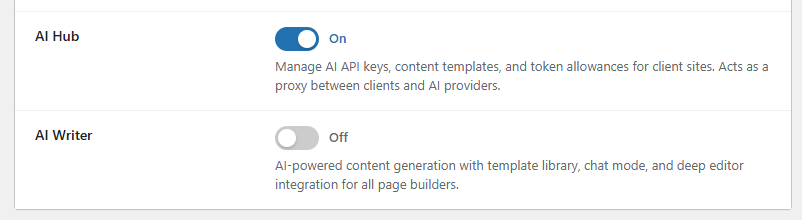
The ToggleWP AI Hub is a “Bring Your Own Key” service. You pay the cost price for any API usage without any 3rd party vendor mark up.
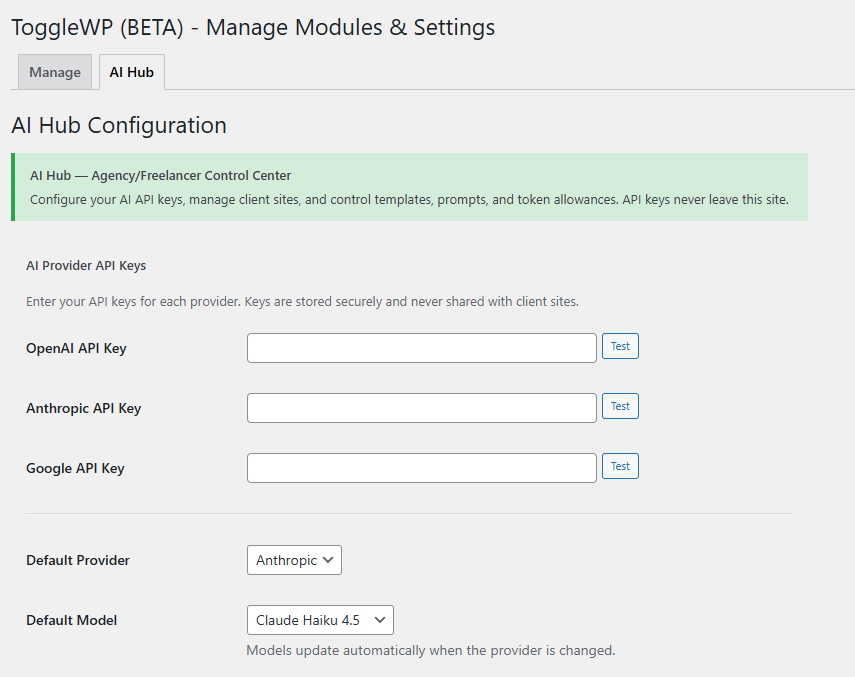
Currently supported providers are OpenAI / Anthropic / Google. Testing so far as only included Anthropic’s Claude.
From the AI Hub tab you can provide + test your API keys, set the default provider and model.
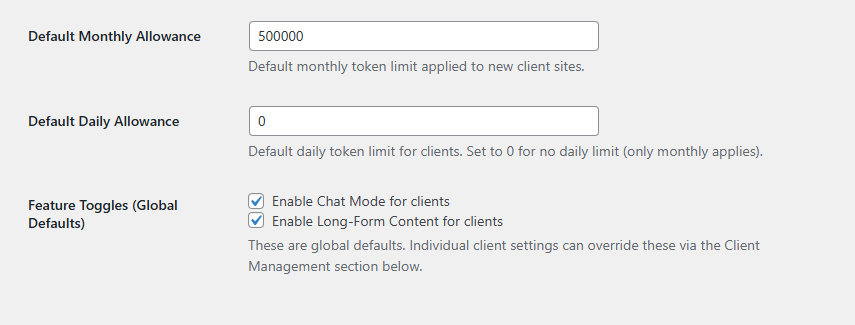
Further down the screen you can set the default monthly allowance (in tokens), default daily allowance and which features are globally available.
Depending on your chosen pricing tiers you may wish to restrict Chat Mode / Long-Form content to paying clients.
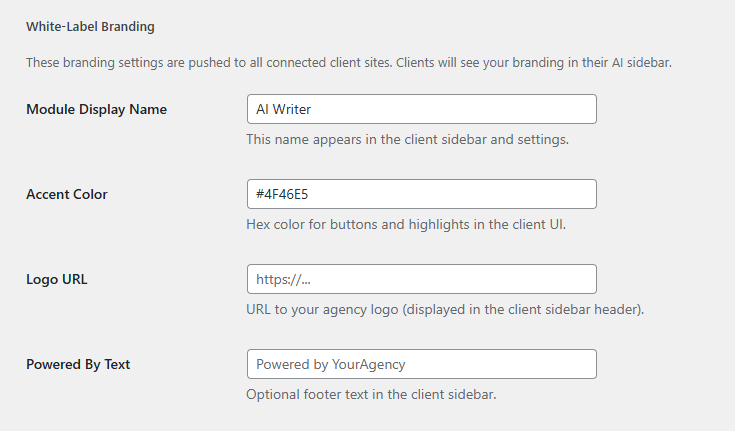
You are providing a value added service to your clients, which is why the AI Writer module can be branded with your own name, accent colour and small logo.
An optional Master Prompt can be included with every generation request for all clients.
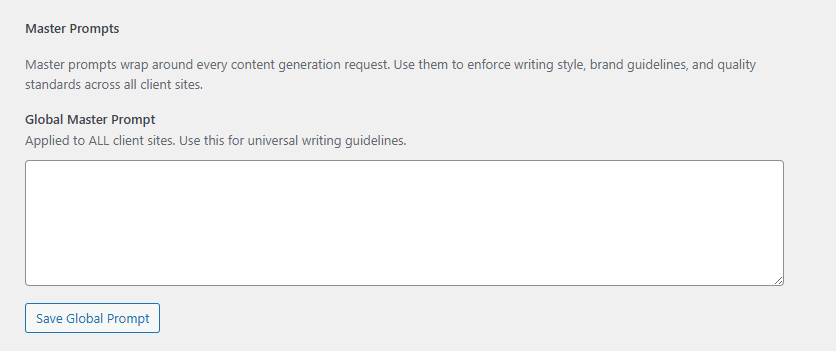
Register & Manage Client Sites
Registering a client site creates a per client application password and generates a connection string which can be pasted into the AI Writer module on a client’s site.
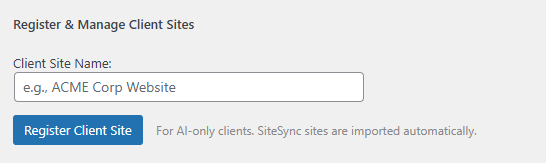
Once a client site has been registered you can adjust its monthly & daily token limits, Chat Mode / Long Form Content features and override the default model. This allows custom configurations to suite your pricing tiers.
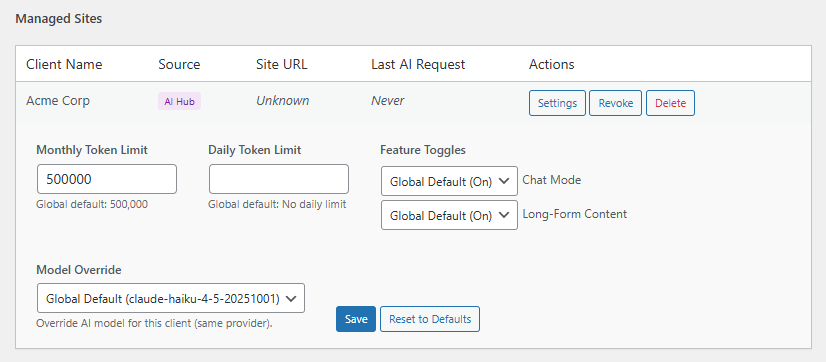
The AI Hub controls the available AI Templates. Individual prompts can be set as Long Form (restricting them to paid tiers), or unchecked from being active which would hide them from client sites.
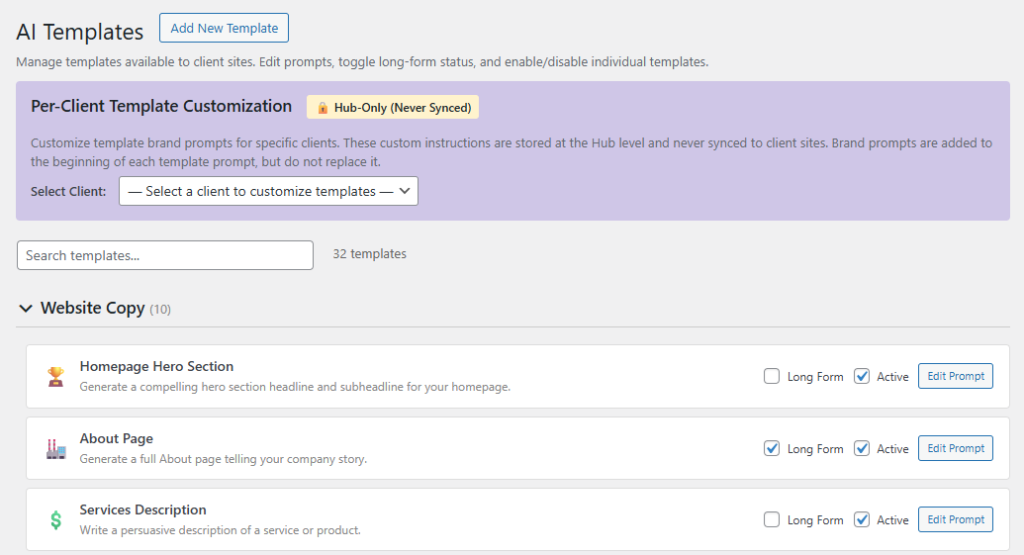
Each template can have its prompt edited, allowing the ToggleWP defaults to be adjusted to suit your requirements.
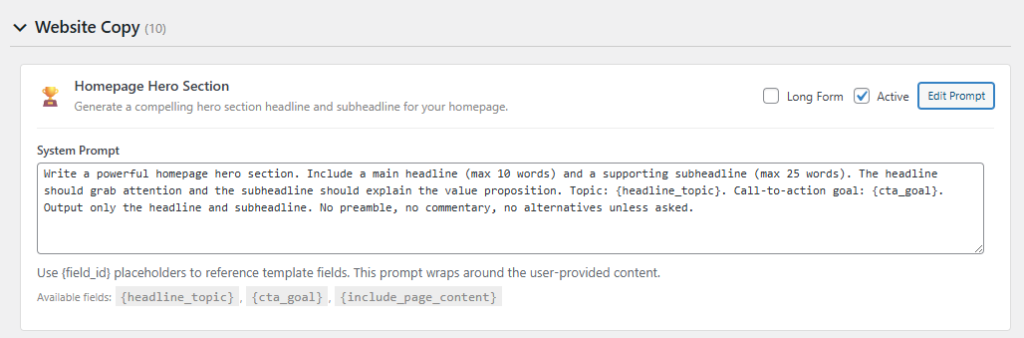
ToggleWP’s AI Hub was built with marketers in mind. With years of developing and understanding brands, they are ideally placed to help freelancers / smaller agencies tailor client’s prompt to fit their brand.
At a per client level the AI templates can be exported / important, allowing a marketer to develop and run tests in isolation from your main site, and provide the JSON to import when its ready.
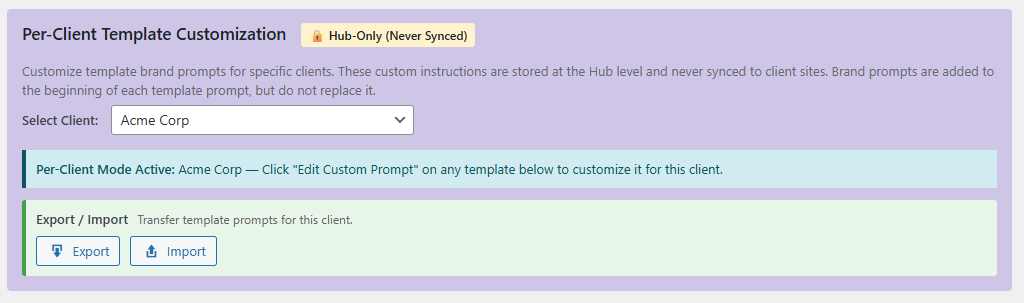
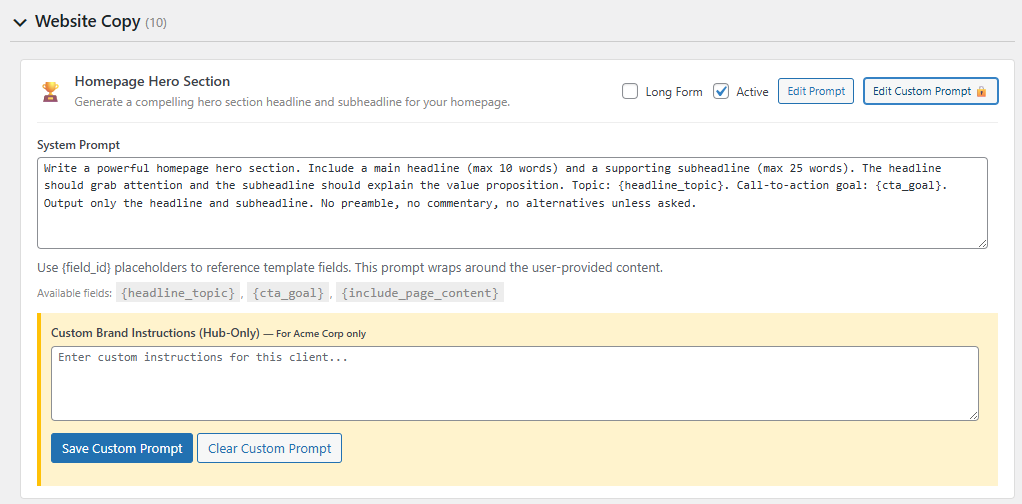
With the “Per-Client Mode” active, an “edit custom prompt” button is shown per built template, allowing tailored brand instructions to be added.
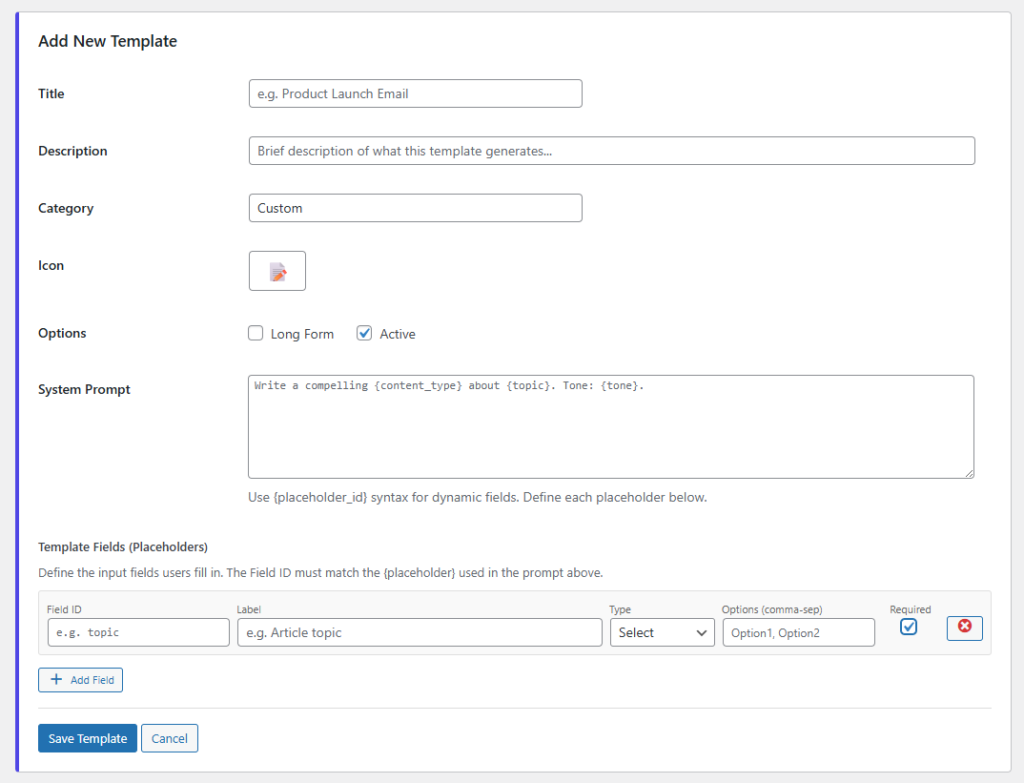
It is also possible to create new templates for all clients to use via the AI Templates screen. When adding a new template you can provide its title, description, category, icon, set it as long form (or not), and its system prompt.
Any number of template field placeholders can be added, with text / text area / select types available. Each can be optional (default) or required).
AI templates can also be created on the client’s site, for their use only. This allows you and your marketer to create custom prompts as part of a one-off paid service.
What does the client see?
With the AI Writer enabled and connected your client will see a new icon throughout their site, like the corner of text fields in the dashboard, the block editor and its toolbar.
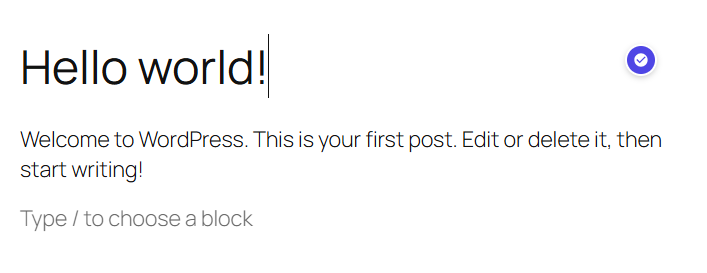
There is experimental support for selecting text and clicking the AI icon. This will capture the selected text and insert it into the first template that is selected.
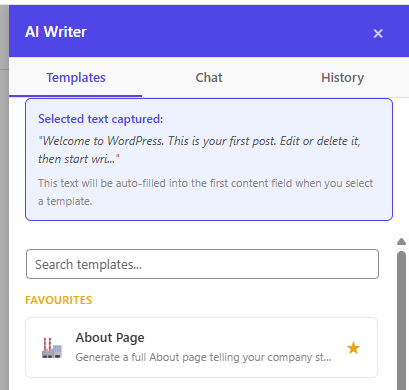
The “Rewrite & Improve” template was chosen and the captured text was auto added. It is a simple time saver but cuts out on a copy and paste.
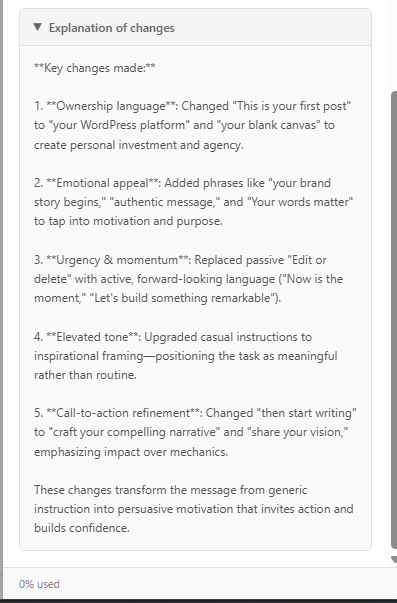
Depending on the template type there may be an option to include an explanation of changes. With this set to yes an extra panel will be shown describing what was changed.
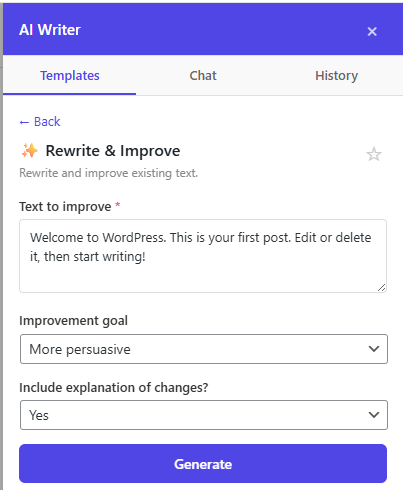
New / updated content will be shown below the generate button.
For simple text blocks you should be able to click the Insert button to add the new text in from where it was originally selected.
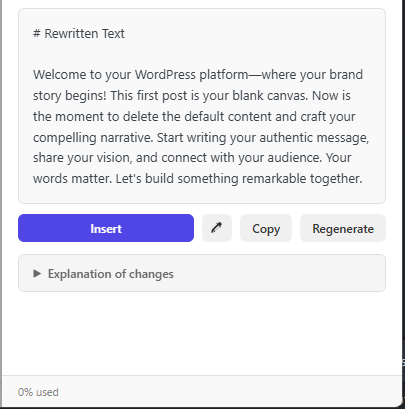
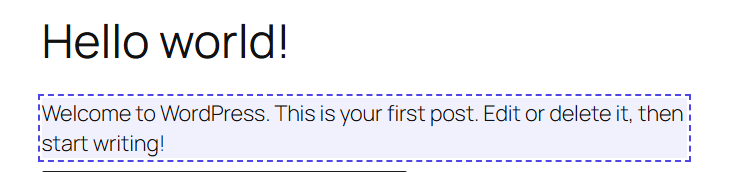
For more complex / custom blocks (or page builders) you may need to click the dropper icon to select an area of the page. Clicking in that area it will attempt to replace the content.
With the selector activated you will see a dotted outline around the area under the mouse. Click to attempt to add the generated text to that section. This works better with blocks than page builders.
There is always the tried and tested “Copy” to copy the content to the clipboard for the user to paste into their page.
Here is an example of explained changes in its own panel, as you wouldn’t want this content added to your page.
Some templates include an “eye” icon, this will convert simple markdown into styled content to be easier to read. This will be rolled out to additional template types over time.
Setting up a client site
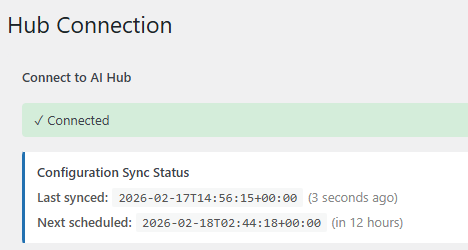
With the AI Writer module enabled you can paste in the configuration text generated by the AI Hub.
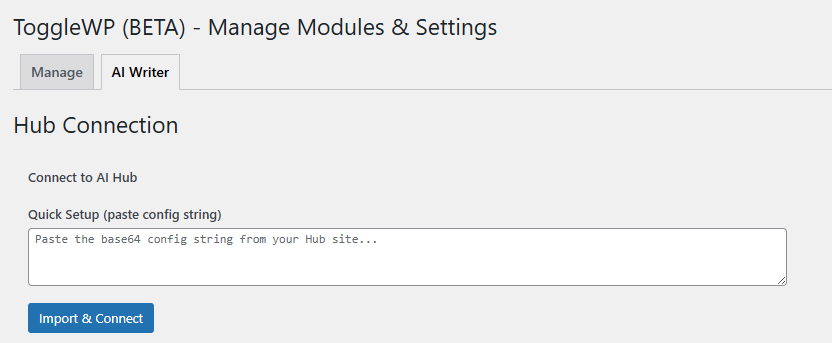
Twice a day the AI Writer will sync with your AI Hub and download templates and their prompts. A manual sync button allows on demand changes for quicker results.
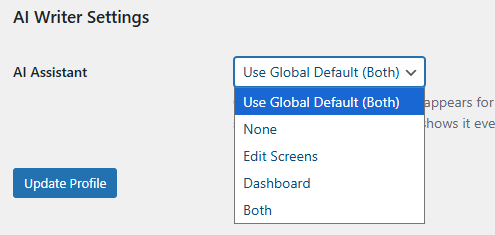
From the AI Writer tab you can choose where to show the AI icon. Options include none / edit screens, dashboard and both.

The User Profile screen also includes an AI Assistant setting which can be adjusted to suit that user’s workflow.
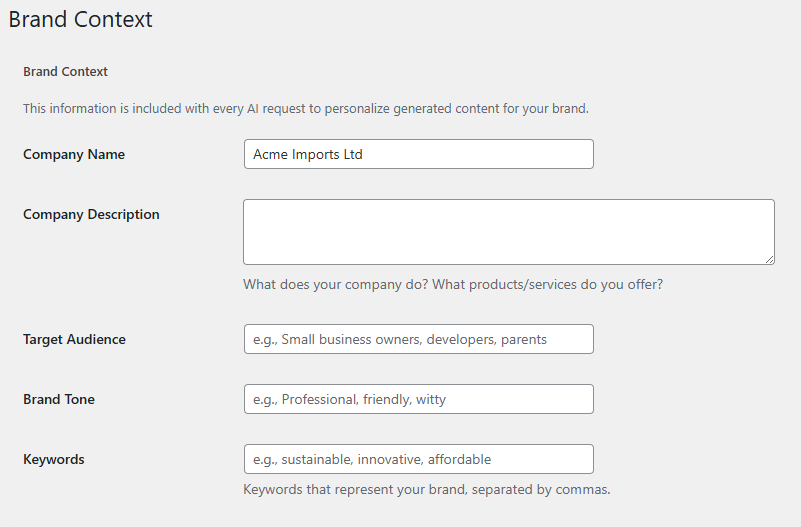
Brand Context can be provided on the client site. This allows changes to be made by a client on basic / self-service tier. It includes the company name, company description, target audience, brand tone and keywords.
These are all optional, but will be included with any request sent from the client site.
The AI Writer Panel
AI Writer is the default name for the side panel and trigger buttons. When set at the AI Hub it will show your custom name on client sites.
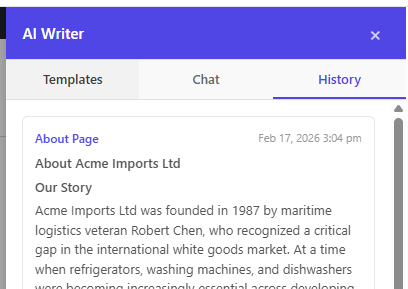
Here we can see the History tab on a client site. History is currently for all users on the site and is not stored per user. This “About Page” content has basic markdown in place as shown with the # and ##.
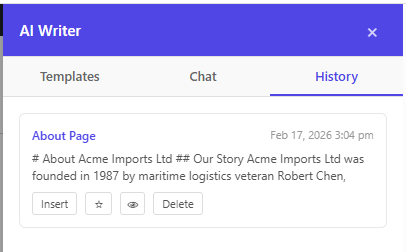
Clicking the “eye” icon expands the panel to see more of the content and displays it with basic formatting.
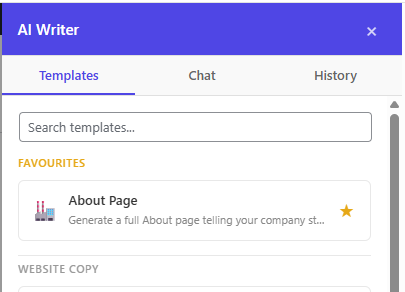
On a per site basis templates can also be marked as a favourite. This adds it to a panel at the top of the list. This is currently stored site-wide and not per user.
AI Hub – Client AI Summary / Usage
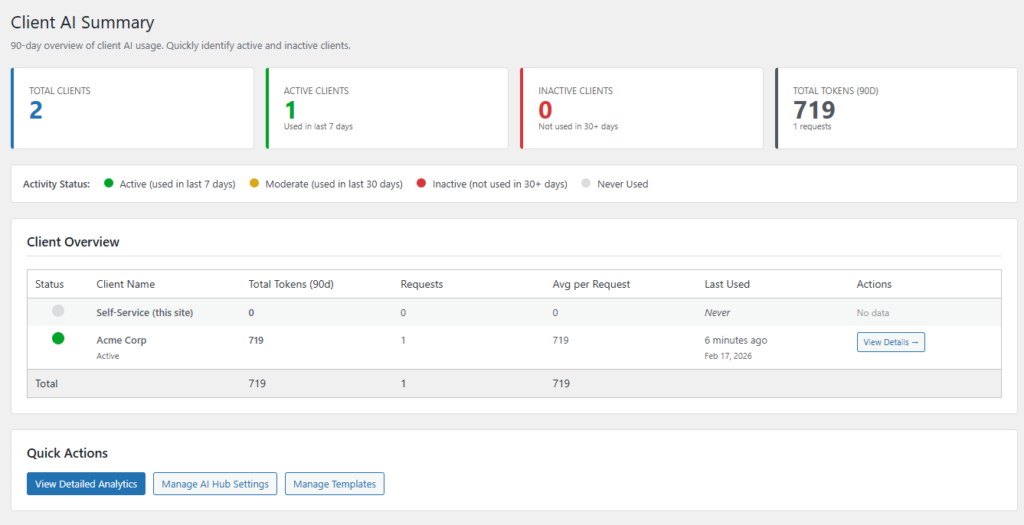
The AI Hub has access to Client AI Summary and Client AI Usage dashboards. The Summary provides a simple view of how many client sites have been registered, how many used AI Writer in the last 7 days, how many haven’t in the last 30+ days and the total tokens used during the last 90 days.
The Client Overview panel provides a simple view of the clients, total tokens, requests, average tokens per request and when it was last used. Clicking a client’s “View Details” button takes you to a granular usage view.
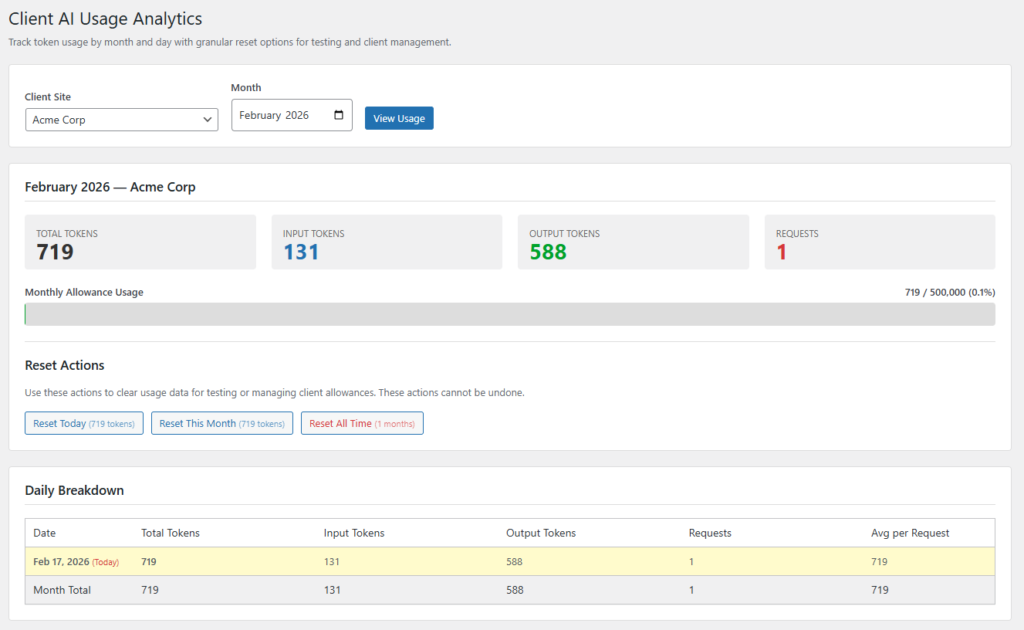
The Client AI Usage screen provides similar totals, along with a daily breakdown. From here their totals can be reset, at a day / month / all time level.
Join the ToggleWP beta program today!
Buy before the 31st March 2026 and lock in the current prices for your first year and all future renewals (when your subscription says active).
All features covered above are included with V0.3 of ToggleWP which was released on the 18th Feb. By joining at the beta stage you can help provide vital feedback to help make ToggleWP the must-have revenue generator for business.
From V1.0 onwards of ToggleWP the AI modules will only be included in the Agency plan.