How to bulk download images from the WordPress Media Library
WordPress is good at allowing images to be bulk uploaded via drag and drop, but less so to getting them back out again. The built in Tools > Export > Media functionality generates an XML file to tell you all about your media… but doesn’t provide a ZIP of the actual files.
To do it manually you could go image to image clicking the download button, but life is too short for that when more than a couple of images are involved.
A more technical route would be to SFTP in and download the entire media folder, with dated sub folders, if you are able to get SFTP access to the site you are working on.
Introducing Media Library Essentials V1.1
My Media Library Essentials plugin started life back in Dec 2024. Since then I had been wondering what else would be essential to include in a future version and had been on the look out for ideas.
Recently an agency owner got in touch and asked if MLE could be extended to support bulk media downloads. There is an existing plugin that did this on the Org repo, but at time of writing it hadn’t been updated in a couple of years and its future support was unknown. When your time is money having an actively supported plugin is worth the annual investment.
The agency owner put forward their primary use case which was website refreshes. Instead of an in-situ replacement they download all media assets from their clients current site, organise them locally and then upload as required. Having a simple solution to extract all media without having to duplicate an entire site would save a lot of time.
This got me thinking. It was a perfect use case (saving time) and it would fit nicely into the essential feature requirement. So I got to work.
Bulk Downloads (Experimental)
With MLE installed there is a “Media Library Essentials” menu item added under Media. The new “Bulk Download (Experimental)” tab allows you to download All Media Files (i.e. images / pdf / mp4 etc), Images Only, or Selected Files (ones selected in the Media Library, see below).
Depending on the size of your media library one or more ZIP files will be created and downloaded. By default each ZIP file will be up to 200MB big, which can be changed via Settings > General, from 10MB to 2GB.
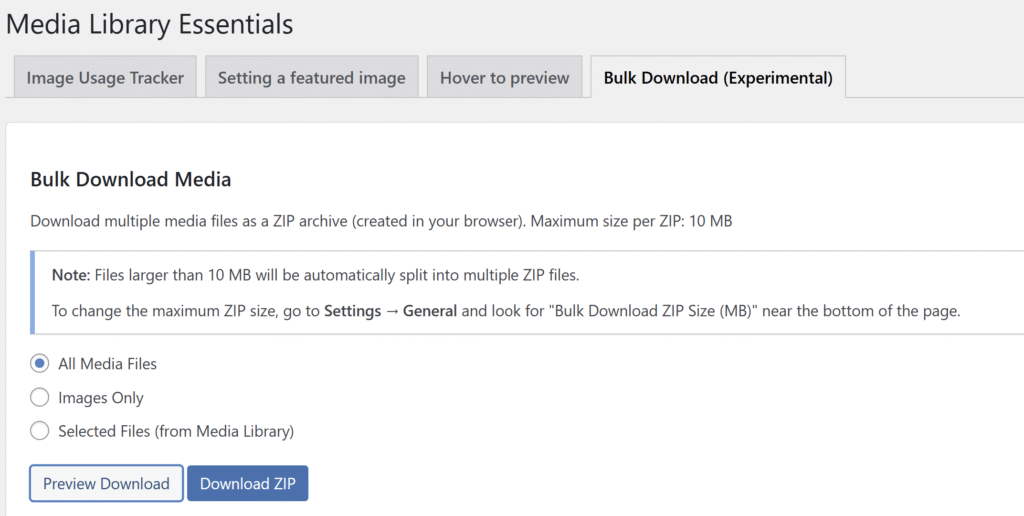
With an option selected click “Preview Download” to see the estimated number of files and their total (uncompressed) size. To save on server disk space MLE uses browser based ZIP creation, no need to worry about large libraries eating up your storage. Instead it downloads the files in the background, creating a ZIP in memory, which is then saved.
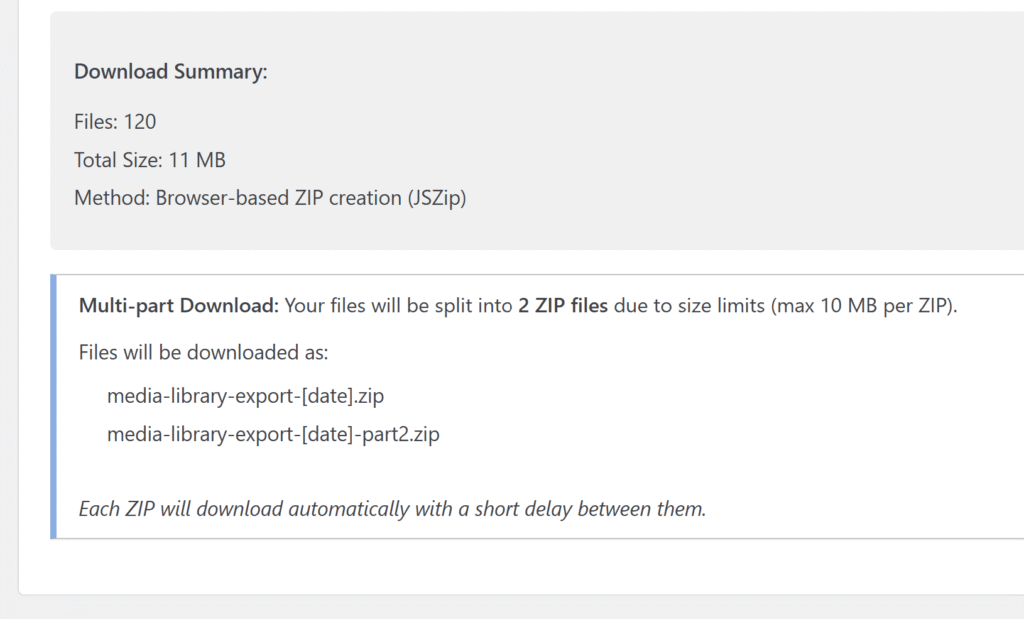
When a potential multi-part download is expected the additional panel will let you know how many files to expect. Your browser may prompt you to allow multiple downloads from the website the first time you use it.
One ZIP will be created at a time and downloaded before it continues with the next batch of images. To avoid server stress 3 media files are downloaded at a time, followed by a short pause before the next batch.
The end result will be 1 or more ZIP files with your media library in the root, no need to hunt in dated folders to combine all images. Duplicate file names, from different folders, will be renamed with _1 _2 etc so nothing is lost.
But that’s not all… Bulk download Selected Files
Sometimes you need to be more selective with your bulk downloads. So not quite bulk, more multi-downloads.
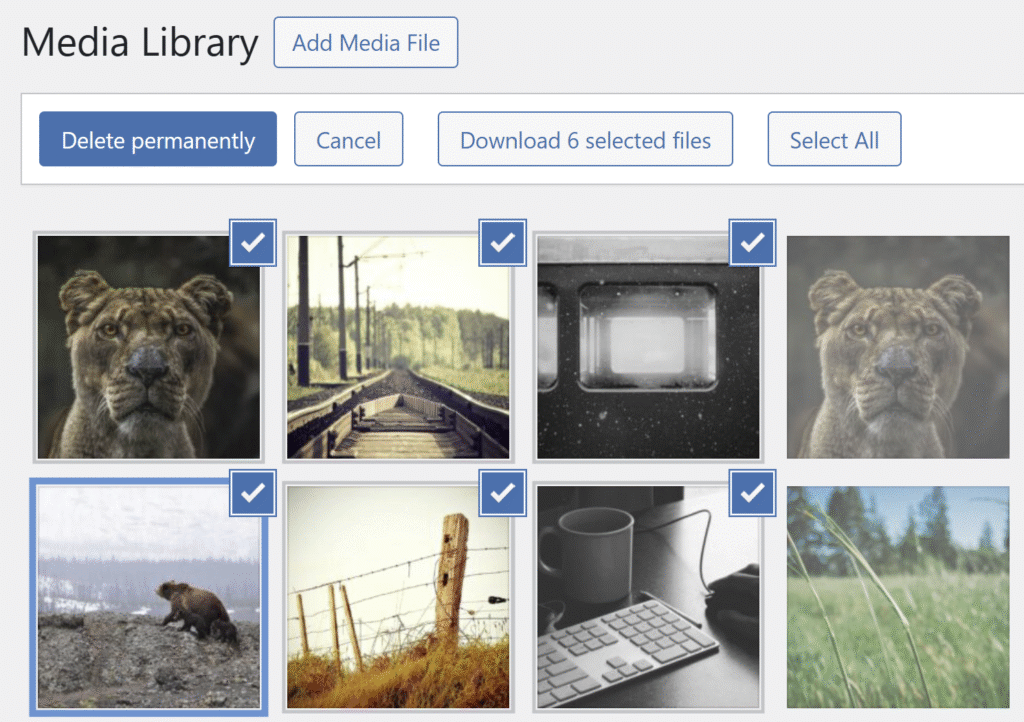
MLE has you covered for this as well. V1.1 includes a multi-download from the Media Library grid screen.
Click the original “Bulk Select” button (previously just to let you delete multiple images), and start selecting them. After you click the first image a new “Download X selected files” button appears. When your selection is completed click the download button, click OK on a confirmation dialog and your download will begin.
While less likely to be used this particular way, you can also select images from the grid view, swap to the MLE screen > Bulk Download tab and use the “Selected Images” option from there. When you select images it uses your browsers local storage to know which were ticked so the other screen knows what was previously selected.
I had debated about removing that option, but decided to leave it in as a hint there is an additional way for a more targeted bulk download approach.
Coming soon to V1.1.1
While updating the MLE plugin page with V1.1 screenshots I had another idea, which will arrive in the next minor release.
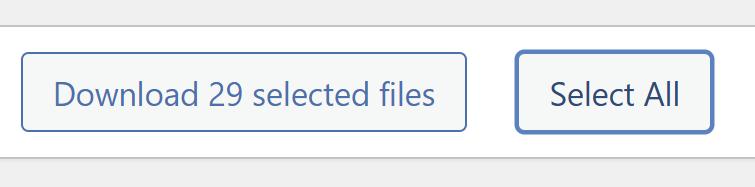
If you filter your images by name, and had 29 matches, you’d then need to select them one by one. That’s not very efficient.
V1.1.1 will include a new “Select All” button on the grid view, saving you 29 clicks. You can then download directly from this screen.