
Quick Steps
- Upload the Document Library Pro Power Pack plugin and activate it using the license key provided in your order email
- Create and publish a new “Edit Document Page” with the dlp_frontend_edit shortcode. This will display the new editing form.
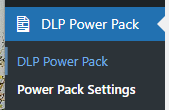
- Go to “DLP Power Pack > Power Pack Settings” and set the “Display Edit Icon” to “By Link”.
- Enter your edit page’s URL into the “Frontend Editing Page” field (for example: /edit). Save changes.
- Edit your existing “Document Library Page”, updating your doc_library shortcode to become doc_library_powerpack. Publish the changes.
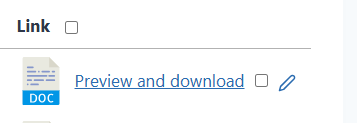
- Visit your Document Library Page as a logged in user / administrator to see the new edit icon in the Links column.
Additional Information
The Power Pack includes new frontend upload and editing forms. These allow additional custom fields to be included via the “include_custom_fields” parameter added to the shortcode:
[dlp_frontend_edit include_custom_fields="true"]Power Pack Settings can be accessed via DLP Power Pack > Power Pack Settings.
The “Display Edit Icon” toggles between “Disabled” / “By Link”.

When enabled, an edit icon is displayed in the “Link” column of your Document Library (table view) for Administrator users or the user that uploaded the document.
The “Frontend Editing Page” set to “/edit” for the new editing page which will display the custom document edit form. For sites using multiple document libraries this setting will control all of them.

To set a single document library to use an alternative edit page pass the “edit=” parameter as shown. This is useful for edit page where additional supporting information may be required.
[doc_library_powerpack edit="/custom-edit/"]Here is an example where the original shortcode has been updated while keeping the original parameters, and adding the new edit parameter:
doc_library_powerpack edit=”/custom-edit/” no_docs_filtered_message=’Sorry, no events available.’ filters=”doc_categories:Categories, doc_tags:Content,doc_author” content=”image,title,content,doc_author,link” status=”publish”
What’s next? Updating your user roles.